
You line up the perfect shot, pull the trigger – and die to someone who was already around the corner. If that sounds familiar, the problem probably isn't your aim. It's lag. The good news is that most lag comes from a handful of causes, and many of them can be fixed at home in a few minutes. This guide explains how to reduce ping and lag in online games on PC, PS5 and Xbox, and which popular "fixes" you can safely ignore.
First, Know What Kind of Lag You Have
"Lag" gets used for several different problems. Fixing the right one saves a lot of frustration:
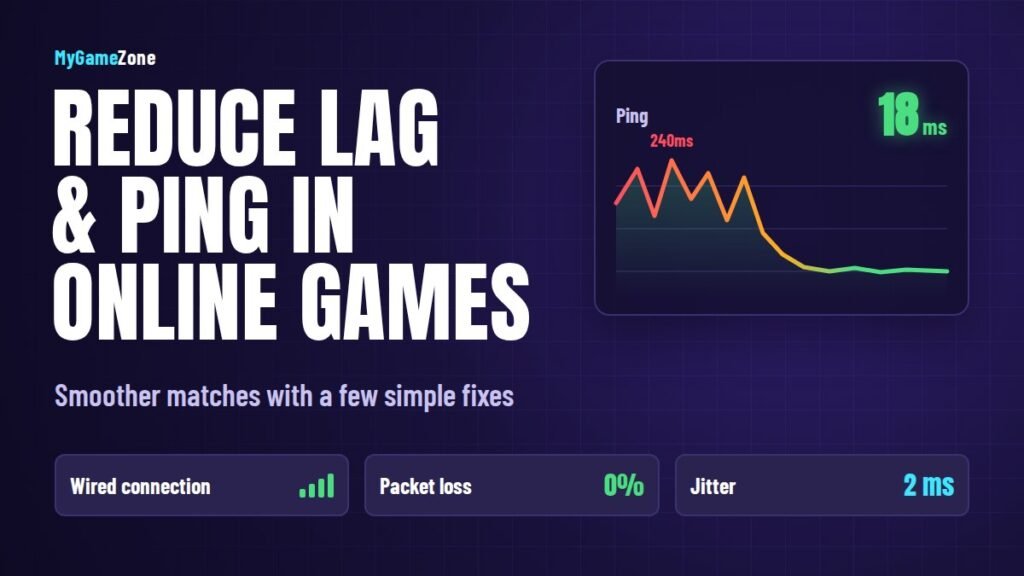
- High ping (latency): the time data takes to reach the game server and come back, measured in milliseconds (ms). Under 50 ms feels great, 50–100 ms is playable, and above 100 ms starts to hurt in shooters and fighting games.
- Jitter: when your ping keeps jumping up and down. A steady 70 ms often feels better than a ping bouncing between 30 and 150 ms.
- Packet loss: data that never arrives. This causes rubber-banding, teleporting enemies and shots that don't register.
- Low FPS / input lag: this isn't a network problem at all – it comes from your hardware or display settings.
Most games can show a network overlay or connection graph in their settings. Turn it on so you can see which of these problems you're actually dealing with.
12 Fixes to Reduce Ping and Lag
1. Use a wired Ethernet connection
This is the single biggest improvement for most players. Wi-Fi is affected by walls, distance, neighbours' networks and other devices, which adds jitter and packet loss. A simple Ethernet cable from your router to your console or PC gives you a far more stable connection. If running a cable isn't practical, powerline adapters or a mesh system with a wired backhaul are good middle grounds.
2. If you must use Wi-Fi, use the right band
Connect to your router's 5 GHz band (or 6 GHz if both your router and device support Wi-Fi 6E/7) rather than 2.4 GHz. It's faster and less crowded, though it has shorter range – so keep your device reasonably close to the router.
3. Move your router somewhere sensible
Routers hidden inside cabinets, behind TVs or on the floor lose a lot of signal. Place yours high up, in the open and as close to your gaming setup as possible.
4. Stop other devices hogging the connection
A 4K stream, a cloud backup or a big game download on another device can spike your ping instantly. Pause heavy downloads and uploads while you play – especially uploads, which many home connections have far less of.
5. Choose the closest game server
Physical distance matters. If a game lets you pick a server region, choose the one nearest to you. Many games default to "auto", which isn't always the best choice. For players in India, that typically means a server in India if available, otherwise a nearby region such as Singapore or the Middle East.
6. Turn on QoS in your router
Many modern routers have a Quality of Service (QoS) or "gaming mode" option that prioritises game traffic over everything else on your network. It won't lower the distance to the server, but it can stop other household traffic from causing spikes.
7. Fix your NAT type
A strict or moderate NAT type can cause matchmaking problems, voice chat issues and poor connections to other players. Enabling UPnP on your router usually solves this. Your PS5 or Xbox network settings will show your current NAT type so you can check after making the change.
8. Restart and update your router
Routers that run for months without a restart can become sluggish. Reboot yours occasionally and check the manufacturer's app or admin page for firmware updates, which often fix stability and performance issues.
9. Close background apps on PC
Launchers, cloud sync tools, browser tabs and auto-updaters all use bandwidth in the background. Close what you don't need while gaming, and set game launchers to only download updates when you aren't playing.
10. Update network drivers and console firmware
On PC, install the latest drivers for your network adapter from the motherboard or adapter manufacturer. On consoles, keep system software up to date – updates sometimes include networking improvements.
11. Test your connection properly
Run a speed test that shows ping, jitter and packet loss, ideally while wired. Test at different times of day. If your ping is consistently high or you see packet loss even when nothing else is using the network, the problem is likely with your internet provider rather than your setup.
12. Talk to your ISP or consider an upgrade
Some connection types handle gaming better than others. Fibre connections usually offer lower and more stable latency than older technologies. If your tests show consistent problems, share the results with your provider – they may be able to fix a line fault or move you to a better plan.
Lag Myths You Can Ignore
- "Changing your DNS lowers ping." DNS only affects how quickly a web address is looked up. It doesn't change the route your game data takes once you're connected.
- "More download speed always means lower ping." Speed and latency are different things. A 50 Mbps connection with stable low latency is better for gaming than a 1 Gbps connection with high jitter.
- "Paid ping boosters are always worth it." Gaming VPNs and routing services can occasionally help with a bad route, but they often add latency. Test before you pay.
Not Network Lag? Fix Input Lag Instead
If the game feels slow even offline, the issue is likely your display or performance settings:
- Turn on your TV's Game Mode to skip heavy image processing.
- Enable ALLM and VRR if your TV and console support them.
- On PC, lower graphics settings until your frame rate is stable, and keep GPU drivers updated.
Getting ready for the season's big multiplayer launches? Read our Modern Warfare 4 guide to see what's coming on October 23.
FAQs
What is a good ping for online gaming?
Under 50 ms is excellent, 50–100 ms is fine for most games, and over 100 ms will be noticeable in fast shooters and fighting games.
Why is my ping high even with fast internet?
Ping depends mainly on distance to the server, your connection quality and network congestion – not raw download speed. Wi-Fi interference and other devices using bandwidth are common causes.
Does Ethernet really reduce lag?
Yes. A wired connection reduces jitter and packet loss compared to Wi-Fi, which makes online games feel noticeably smoother.
Can a VPN reduce ping?
Rarely. In most cases a VPN adds an extra hop and increases ping. It only helps if your ISP is routing traffic to the game server badly.